August 10, 2026
A digital security checklist for the AI age
We’re going to see huge, foundational cybersecurity attacks given the rapid rise in AI capabilities. Having worked in hostile environments, I’ve thought a lot about physical and digital security over the years. While you may not be personally targeted, or doing dangerous work, your data is undoubtedly leaked somewhere (check here with your email), and the digital providers you use—for email, banking, social media, etc.—are more and more likely to get hacked.
So I created this basic checklist to help tighten up your digital security.
This checklist, with tickboxes and an automated script below, is not comprehensive, but meant to be a compromise, like all security advice, for the general public.
(If you are likely to be targeted, start with everything below, and then think about your specific circumstances—including perhaps physical security.)
Start with email; all else is downstream
By having access to your email, attackers will be able to hit “forgot password” and get into your bank, your broker, your cloud storage, etc. So start here.
I recommend everyone buys a YubiKey or similar hardware security key. This is a USB/NFC device to keep on your keyring which allows you to sign in. Buy two. Enrol both and keep one in a drawer as a backup.
Yubico has a guide to adding a YubiKey to a Google account.
Then do the bit everyone forgets: look at your email account’s recovery options. A hardware key on the front door achieves nothing if a text message opens the back one. Recovery phone, recovery email, security questions — every one of them is a route in, and they are usually easier to attack than the password. If your provider offers a mode that removes the weak routes altogether, such as Google’s Advanced Protection, then use it.
While you are there, you could give your bank and the government an email address you never post anywhere. It costs nothing, and it takes the accounts that matter most off every breach list your public address is already on.
Passwords: you don’t want them
Install a password manager such as 1Password, Bitwarden, or use Apple’s built-in password manager. Let it generate everything from now on. You will end up with two passwords you actually have to remember: your device login and the manager itself. Those two should be long, and they should be different from each other.
For passwords you must remember: xkcd settled the argument over a decade ago and the world has still not caught up:
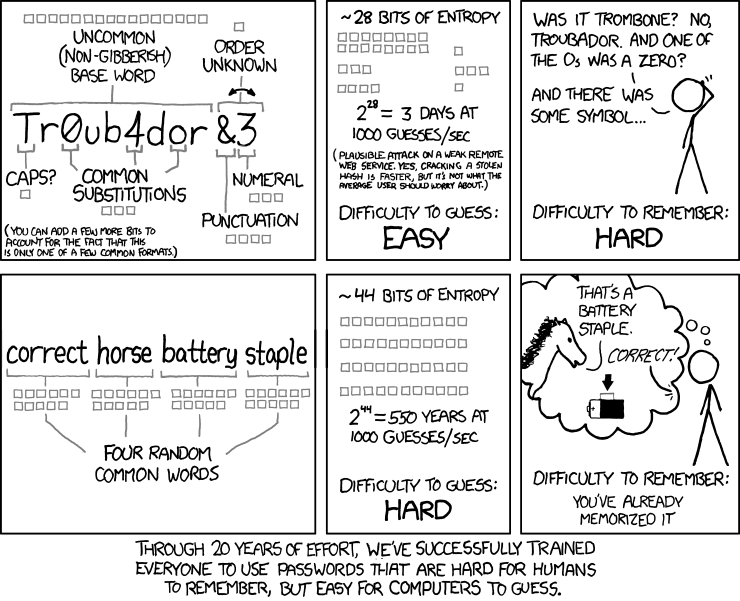
As I said, security is a compromise, so start with the most important accounts today and feel free to leave others until you next sign in to them.
Have I Been Pwned will tell you which of your addresses are already in breach dumps.
Different types of multi-factor authentication
There is a hierarchy here, and SMS, used commonly by banks, is least secure.
SMS codes stop someone who only has your password. They do not stop someone who has convinced your mobile carrier to move your number onto their SIM, which is a thing that happens to people every day and requires no technical skill at all.
Authenticator apps fix that. They cannot be intercepted by taking over your number. But they can still be phished: a convincing fake login page asks for the code, you type it in, and the attacker relays it to the real site within the thirty seconds it lives.
Hardware keys close that last gap, and they do it through one clever property. The key checks which website is asking before it answers. A fake site gets a refusal, and it gets one whether or not you were fooled. Your judgement stops being the thing that has to be right every single time — which matters, because it will not be. That is the entire argument for hardware keys, and it is enough.
Passkeys are the same idea without the metal. A passkey lives on your phone or in your password manager, and it has the property that matters: it checks which site is asking before it answers, so a fake login page gets nothing. They cost nothing, and Apple, Google and every serious password manager will store them. Take one wherever a site offers it. The split that makes sense is hardware keys at the root — your email and the password manager itself, which is where your passkeys live — and passkeys for everything downstream.
Save your backup codes somewhere you will still have after losing your phone. The password manager is fine. Inside the account they exist to unlock is not.
Phone numbers as identity
Call your carrier, or tick a box on their website, and set a port-out PIN or account passcode. This makes a SIM swap far more difficult. Then go through your important accounts and remove your number as a recovery method wherever something better exists.
Freeze your credit
Identity theft is going to become far more common.
A credit freeze means lenders cannot pull your file, which means they will not approve a new account. It does not affect your credit score. It does not touch the cards you already have. In the US it is free by law, and you do it at each of the three bureaus:
This shouldn’t take more than 20 minutes. If you need credit later you thaw it temporarily, which takes about a minute.
The three big bureaus are not the whole picture. Innovis is a fourth. ChexSystems, which has a horrible user interface, is what banks check before opening a current account, and NCTUE is what phone and utility companies check. Worth doing those too.
While you are there, pull your report and check it to ensure there are no accounts you don’t recognise on there. annualcreditreport.com is the free official route in the US — not Credit Karma!
The same logic applies to the government. Someone who files a tax return in your name before you do collects your refund. The fix is an IRS Identity Protection PIN: without it, no return is accepted under your number. An IRS online account and a my Social Security login mean nobody else can be the first to create them. All three are free and take minutes.
Freeze your children’s credit too. Sadly, the bureaus do not freeze a minor’s file online: you print a form for each of the three, photocopy the birth certificate, the Social Security card and your own ID, and send the lot in the post. It is an hour with a printer and three envelopes.
Outside the US, surprisingly, this is far more difficult. The UK has no true freeze; CIFAS Protective Registration is the closest equivalent, and it flags your file so lenders apply extra checks rather than blocking applications outright. It costs £30 for two years.
Your devices
Keep them up to date so the patches for all these hacks come through for you. Turn on full-disk encryption. Let the screen lock itself within a few minutes, and turn off automatic login at boot, which otherwise undoes the lock. Leave the firewall, Gatekeeper and System Integrity Protection alone. Turn off remote login and file sharing unless you actually use them, because anything listening on every interface answers strangers the moment you join café wifi. Turn on Find My so a lost machine can be wiped from a distance.
Someone who watches you type your phone passcode and then steals the phone can reset your Apple ID password, switch off Find My, and lock you out of your own accounts in minutes. Make the passcode six digits or more, cover it when you type it (or use Face ID/your thumb), and turn on Stolen Device Protection. With it on, the dangerous changes need Face ID rather than the passcode, and away from home or work they wait an hour first.
While not strictly part of this list, a VPN encrypts your internet traffic from the public wifi you’re using to the VPN provider. Most of them are sold on fear, but if you use a lot of public wifi, or would rather your internet provider did not hold a list of every site you visit, Mullvad is my preference. There’s no account you must create, so no name or email is attached to it, and one flat price that you can even pay in cash.
Backups
Your device may get stolen or lost, a hard disk may die, or a hacker will get in and demand a ransom. You want to not care about these things.
Macs come with Time Machine which can back up to a local disk very easily. This is a must. I’d also highly recommend Arq which adds an encrypted copy to storage you control, such as Arq’s own cloud storage, or your own S3 bucket, a Network-Attached Storage (NAS), or whatever you like. I have multiple backups both physical and online. I don’t want to lose hundreds of thousands of photos for one.
Also, it’s worth testing out file restoration from Time Machine or Arq. A backup nobody has ever restored from is a hypothesis, not a backup.
The human bit
Verify every human contact by phone via a second channel. If someone calls you, do not trust them. Make them prove themselves (and don’t be unnecessarily polite about this; being overly polite is one of the biggest mistakes people make in physical security situations).
Voice cloning has made the family-emergency call cheap to fake. Agree a word with your family that’ll be used in case of having to prove yourselves to each other on, for example, the phone, akin to kidnap threat ‘proof of life’ questions. But plan something simple in advance, especially with children.
The checklist
Here it is in a form you can tick. It is stored in your browser and nowhere else — there is no account, and nothing is sent anywhere.
The checklist
Everything else can be reset through it, so it is the account an attacker actually wants.
Passwords
One password per site, none of them in your head.
Second factors
Not all second factors are equal. One kind survives being phished; the others do not.
Your phone number
It was never designed to be an identity document, and it is treated as one anyway.
Credit and identity
The step people skip, and the one that stops a stranger borrowing money in your name.
Devices
The boring settings. This is the part a script can check for you.
Backups
Ransomware and a failed disk look identical from where you are standing.
People
The remaining attacks are not technical. They are a convincing message at a bad moment.
Ran the script? Paste its output and the machine-checkable items will tick themselves.
A script for the boring bits
Here is a script that reads settings on your Mac and automatically ticks the boxes above.
Download check-my-mac.shbash ~/Downloads/check-my-mac.shIt is read-only. It changes nothing, installs nothing, needs no sudo, and makes no network calls — there is not a single one in the file, and you should confirm that rather than take my word for it. Open it in a text editor first. It is about four hundred lines of defaults read, netstat and grep, and reading it before running it is the correct instinct to have about a shell script from a website.
To tick the boxes above automatically:
bash ~/Downloads/check-my-mac.sh --json | pbcopyand paste into the box under the checklist. Results that pass will tick; results that fail will untick; anything the script could not settle is left exactly as you had it, because a check that reached no verdict has no business quietly undoing something you did by hand.
What it cannot see is the important part. It has no idea whether you froze your credit, enrolled a hardware key, or set a port-out PIN. Those are the highest-value items on the list and every one of them stays manual. A green tick here means a setting is configured — nothing more.